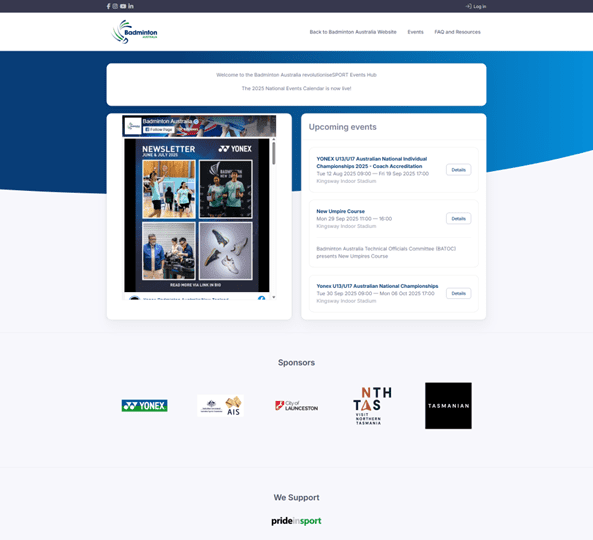
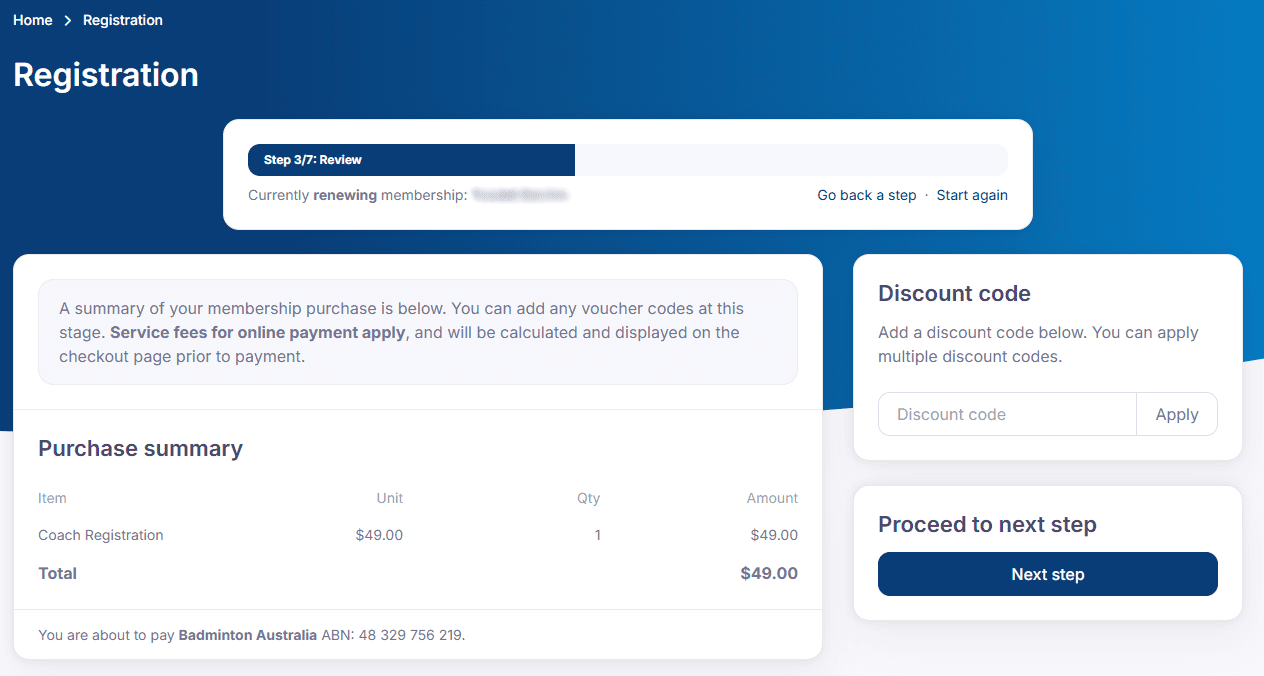
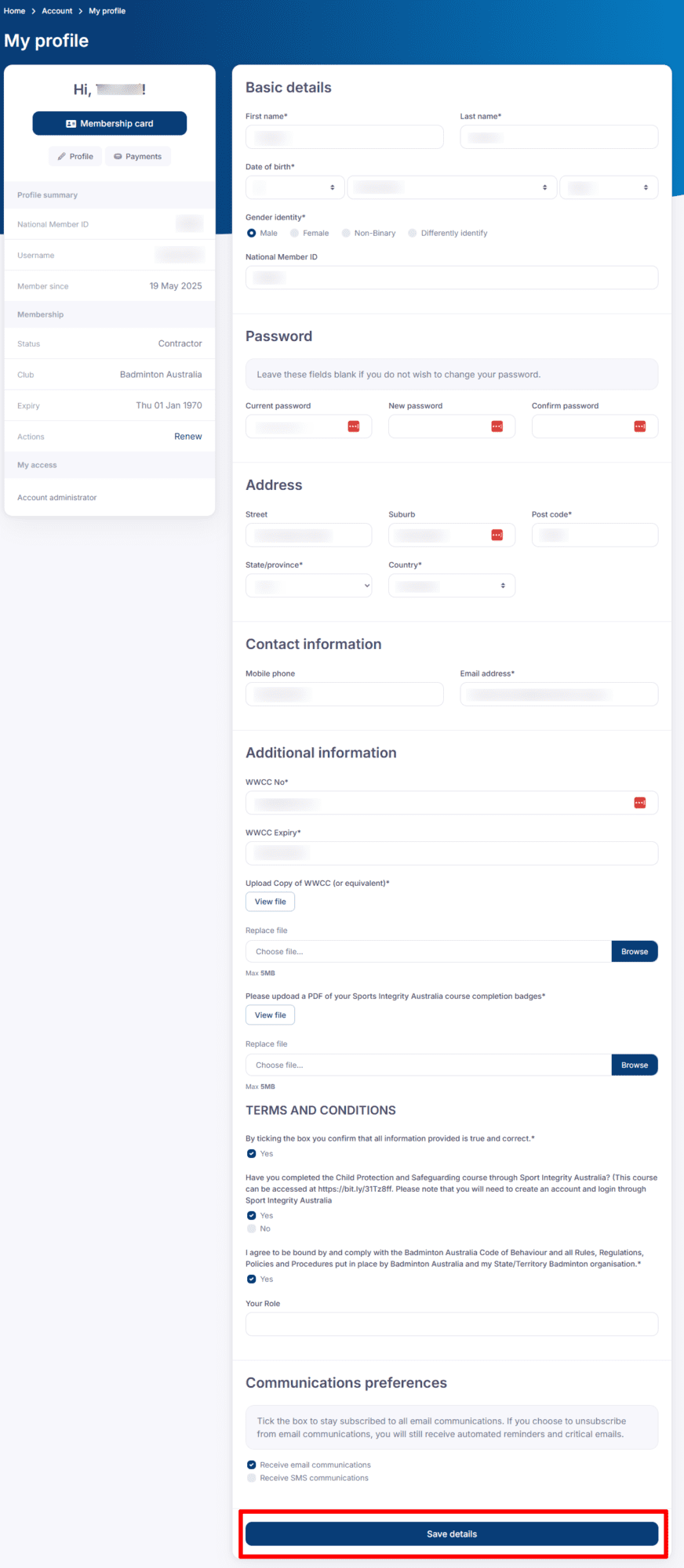
revolutioniseSPORT is an online management platform for sports of all shapes and sizes.














Crown Group is a highly successful property development group, with a reputation for building globally leading luxury and hotel apartments. The Crown Group has been a supporter of the Australian Badminton Open.
Commonwealth Games Australia (CGA) is a member-based organisation that administers, controls and coordinates the participation of program sports at the Commonwealth Games every four year. Badminton Australia is extremely proud of its work with CGA and is keen to continue such a great relationship with the staff at CGA into the future.

The Badminton World Federation is the global body responsible for the development of badminton, with a vision to give every child the chance to play badminton, the BWF are key to the success of badminton at any level. Badminton Australia is a member of the BWF. Having supported the development of international tournaments in Australia and the development of athletes to the highest level, BA is very grateful to have the support of the BWF.

Badminton Oceania is the representative for the Badminton World Federation in the Oceania region. They are responsible for the development and progress of badminton within the Oceania region. Badminton Oceania are a great supporter of Badminton Australia and work closely with BA on a regular basis.

The Australian Olympic Committee (AOC) is a non-government, not-for-profit focused on developing youth and sport. The AOC is responsible for the funding, supporting, selection and sending of Australia athletes to the Olympics every four years. The AOC provides significant support to the Australian Badminton Falcons and the Badminton Australia Performance Pathway. Badminton Australia is very thankful and is perpetually excited for Australian badminton players to represent their country Olympic Games.

The Australian Institute of Sport (AIS) is the second arm of the Australian Sports Commission, the focus of the AIS is at all aspects of high-performance sport and as a result Badminton’s High-Performance teams work with the leading minds at the AIS. Badminton Australia has been working with the AIS for many years and with a continued focus on high performance excellence, both home and abroad, is excited to continue to work with the AIS long into the future.
Li-Ning is a global leader in sports apparel, with a focus on badminton, Badminton Australia is proud to be partnered with an organisation with such a rich and successful history in sport and for it to support the Australian Badminton Falcons. Li-Ning has supported Olympic medal athletes across the world and continues to push badminton apparel forward.

Sport Australia is an arm of the Australian Sports Commission that is responsible for the broader sport sector. Included in their responsibilities are participation, governance and supporting activities that link to the sport industries growth and sustainability long term. Badminton Australia works closely with Sport Australia in areas of participation, governance and other sport related activities.
YONEX has been a supporter of the sport of badminton globally since 1957 when they produced their first badminton racquets. As the business has expanded so too has their equipment and apparel offerings. YONEX has supported badminton in Australia at all levels for a number of years and badminton Australia is very excited to continue its relationship with an organisation that has been involved in the sport for so long.